
This guide shows how to use Power Pages environment variables to keep environment-specific values, like a support email address or an on/off switch for a banner, out of your site’s code, using site settings and Liquid.
If you’ve ever moved a Power Pages site from dev to test to production, you’ve probably had to go back into the site afterwards to change a support email, a URL, or a setting that should be different in each environment. Doing that by hand is easy to forget and also creates an unmanaged layer in the destination environment, which is not ideal. Environment variables take care of it: the solution carries the variable, and you provide the value for each environment when you import.
This guide assumes you already have a template-based Power Pages site (Liquid isn’t available in code sites built with React, Angular, etc.) and that you’re comfortable adding Liquid to a web template or page. If not, I would review Microsoft’s guides here:
Prerequisites
Environment variables for site settings only work with the enhanced data model. At the time of writing, Microsoft lists these minimum versions:
- Dataverse server version 9.2.25013.x
- Power Pages package version 1.0.2501.x
- Power Pages runtime version 9.7.1.x
If your site was created recently, you’re most likely fine. Check the versions on your site if the environment variable option doesn’t show up.
How It Works
There isn’t a Liquid object for environment variables, so the site setting acts as the bridge between the two:
- Create an environment variable in a solution.
- Create a site setting and set its source to that environment variable.
- Read the site setting in Liquid using the
settingsobject.
Setting It Up
For my fictitious examples, I’ll use a variable called “SupportEmail” that holds a different mailbox in each environment.
Step 1: Put your site in a solution. Environment variables travel with a solution, so before anything else, make sure your Power Pages site is in one. In Power Pages or the Power Apps maker portal, open Solutions, select your solution (or create a new one), and use Add existing to add your site. Everything we create in the next steps can then be added to the same solution and moved to the next environment together.
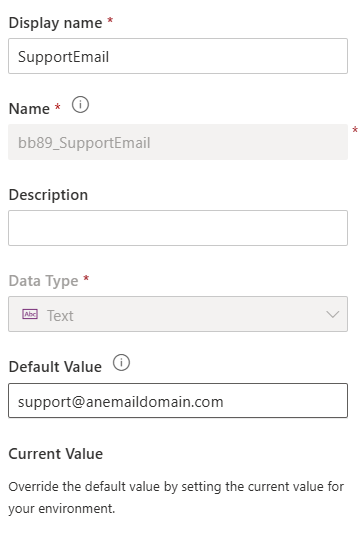
Step 2: Create the environment variable. In your solution, add a new environment variable. I’m using the display name “SupportEmail”, the schema name bb89_SupportEmail (use your own publisher prefix), and the data type Text.
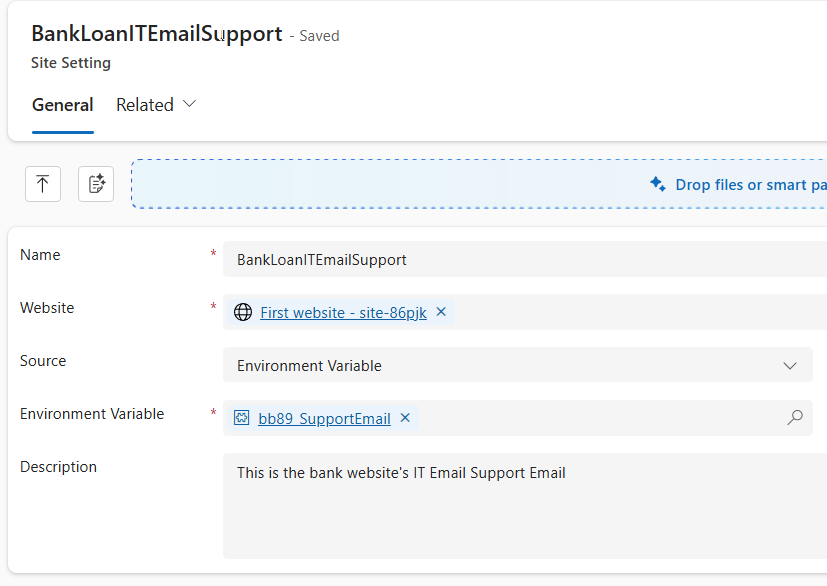
Step 3: Create the site setting. Open the Portal Management app and go to Site Settings. Create a new site setting and give it a name. I’m using BankLoanITEmailSupport. Whatever name you choose, remember it, because you’ll need to use that exact name in Liquid (more on that in the tip below). Change the source to Environment Variable and use the lookup to pick bb89_SupportEmail. Save it.
Okay, great, we’ve created the environment variable and defined it in our site settings. Now it’s time to use it in our code. In the simplest use case, to reference the value, you read the site setting with the following Liquid code format.
{{ settings['BankLoanITEmailSupport'] }}
Tip: the name has to match exactly. The name you use inside settings['...'] must be exactly the same as the name of your site setting, including capitalization and any prefix. If it isn’t, Liquid doesn’t show an error. It just returns nothing, and your page quietly shows a blank. It’s an easy mistake to make: a setting named BankLoanITEmailSupport won’t be found if you look it up as Custom/BankLoanITEmailSupport.
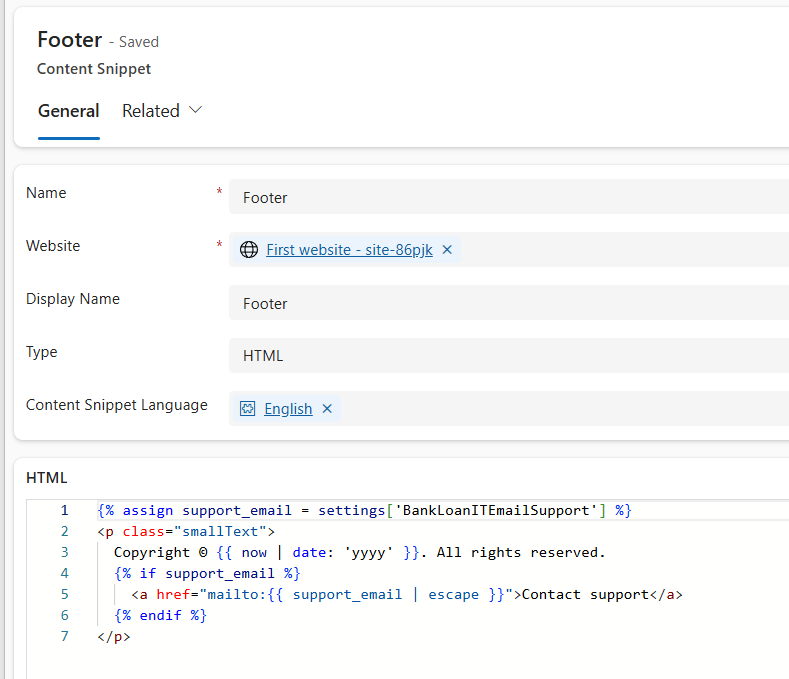
In my example, I want a “Contact support” link in the footer that points to the right mailbox in each environment. If the setting doesn’t exist, Liquid returns null, so I check for it first. I also use the escape filter any time I output a value into HTML. Under Content Snippets in the Portal Management app, locate the Footer for your website and edit the HTML code.
{% assign support_email = settings['BankLoanITEmailSupport'] %}
{% if support_email %}
  <a href="mailto:{{ support_email | escape }}">Contact support</a>
{% endif %}
To check whether the value is coming through, temporarily add this line to your template. The brackets make it easy to tell an empty value from no output at all:
<p>Setting value: [{{ settings['BankLoanITEmailSupport'] }}]</p>
If you see [], Liquid is running but the setting is empty or the name doesn’t match. If you don’t see anything at all, not even the brackets, Liquid isn’t running in that spot. Remove the line when you’re done.
Here’s the end result of how my footer looks. Hovering over “Contact support,” I can see the value from my environment variable.

Example 2: Show an Environment Banner
For the next example, I’m going to use a boolean environment variable to determine whether or not a banner is shown on a page. This banner serves as a notice to a user that they are browsing a website that’s not in a production tier. The boolean is Yes in every environment except production, where it’s No.
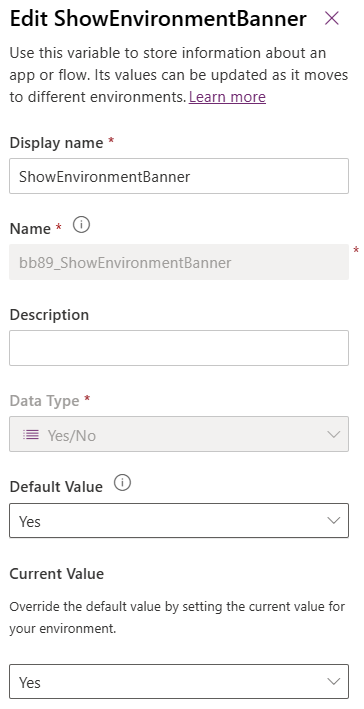
Like before, I create my environment variable, this time as a Yes/No (boolean) type.
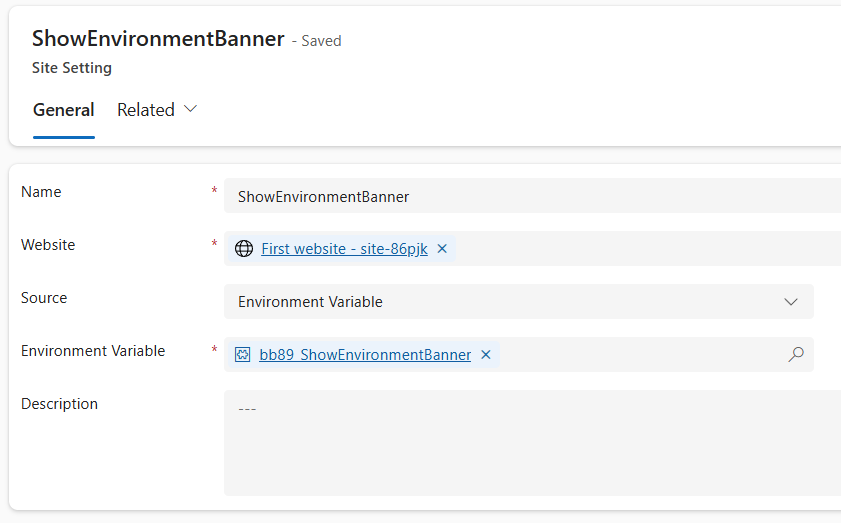
As before, I go back to the Portal Management app and create my site setting record.
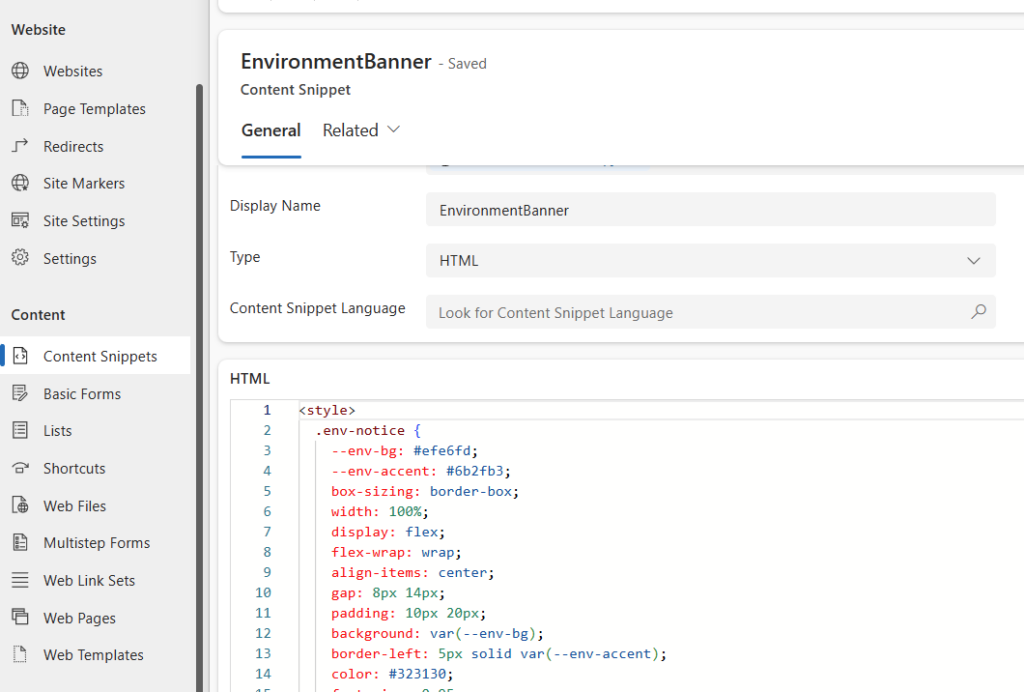
Next, I create the banner itself as a content snippet. In the Portal Management app, go to Content Snippets and create a new one named EnvironmentBanner, with the type set to HTML. Paste in the following. It’s just the banner’s HTML and styling, so feel free to change the wording and colors:
<style>
  .env-notice {
    --env-bg: #efe6fd;
    --env-accent: #6b2fb3;
    box-sizing: border-box;
    width: 100%;
    display: flex;
    flex-wrap: wrap;
    align-items: center;
    gap: 8px 14px;
    padding: 10px 20px;
    background: var(--env-bg);
    border-left: 5px solid var(--env-accent);
    color: #323130;
    font-size: 0.95rem;
    line-height: 1.5;
  }
  .env-notice__badge {
    padding: 2px 10px;
    background: var(--env-accent);
    color: #ffffff;
    font-size: 0.8rem;
    font-weight: 700;
    letter-spacing: 0.04em;
    text-transform: uppercase;
    border-radius: 3px;
    white-space: nowrap;
  }
  .env-notice__text { margin: 0; flex: 1 1 280px; }
  @media (max-width: 576px) { .env-notice { padding: 10px 14px; font-size: 0.9rem; } }
</style>

<div class="env-notice" role="region" aria-label="Environment notice">
  <span class="env-notice__badge">Non-production</span>
  <p class="env-notice__text">
    You're viewing a test version of this site. Content and data here may differ from the live
    site, and changes made here don't affect production.
  </p>
</div>
In the page code below, the {{ snippets['EnvironmentBanner'] }} line pulls that snippet in, and the if around it decides whether it’s shown.
Then, on my Home Web Page, I add this Liquid code to determine whether I display the banner.
{% assign show_env_banner = settings['ShowEnvironmentBanner'] | boolean %}
{% if show_env_banner %}
<!-- Content snippet: EnvironmentBanner -->
<div class="row sectionBlockLayout" style="padding: 8px; margin: 0px; display: flex; flex-wrap: wrap; text-align: left; min-height: auto;">
  <div class="container" style="padding: 0px; display: flex; flex-wrap: wrap;">
    <div class="col-lg-12 columnBlockLayout" style="flex-grow: 1; display: flex; flex-direction: column; min-width: 300px; margin: 15px 0px; padding: 4px;">
      {{ snippets['EnvironmentBanner'] }}
    </div>
  </div>
</div>
{% endif %}
And the end result on the website:

Things to Watch Out For
Clear the cache after a change. This is the number one reason a value doesn’t seem to update. After you change an environment variable’s value, either select Sync in the design studio, sign in as an admin and select Clear cache at /_services/about on your site, or restart the site from the Power Platform admin center. If you put your code in the header or footer, that output can also be cached.
Match the type to how you read it. If a site setting expects a true/false value and the environment variable holds something else, you’ll run into problems. Keep the variable’s value in the format the setting expects.
Don’t output secrets. Anything you render with Liquid ends up in the page source, so visitors can see it. Environment variables can be configured as secrets (they need an Azure Key Vault), but that’s for settings the site uses behind the scenes, not for printing to a page.
Don’t use it for everything. Microsoft recommends using environment variables for site settings only for settings that really differ by environment, since doing so for every setting can affect performance. For text that editors change often, content snippets are a better fit.
Wrap Up
Linking an environment variable to a site setting gives you one solution that behaves correctly in every environment, with no hand edits after each deployment. Once the setting exists, reading it in Liquid is just settings['YourSettingName']. I hope these examples give you some ideas for your own sites.
If you want the model-driven app version of this idea, I covered retrieving environment variable values with JavaScript in a separate post.