
One of the challenges I’ve faced when using the Power Apps Admin Center is getting a quick view of all the apps within all environments for documentation purposes. Sure, you can go into each environment’s Admin Center and view the apps, but this is not efficient. Even worse, from there, there’s no way export the a list of the apps!
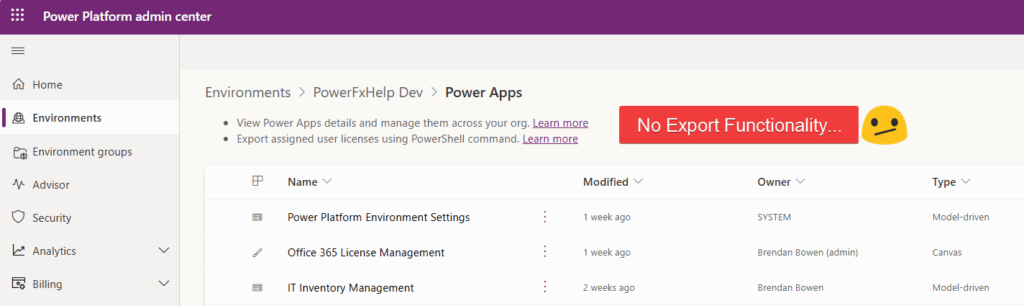
To solve this, I explored several options before landing on the approach I describe below. First, I tried PowerShell with the Get-AdminPowerApp cmdlet—but that only returns Canvas App data. No Model-Driven Apps in sight. Then I turned to Power Automate’s Power Apps for Admins connector—same limitation: Canvas only! Why no love for Model-Driven Apps!? Ugh.
I also considered the Center of Excellence (CoE) Toolkit, which does offer detailed reporting across environments; including both Canvas and Model-Driven Apps. But setting it up takes time —and I just needed something quick and dirty!
The Solution: Power Automate to Fetch App Data from Dataverse
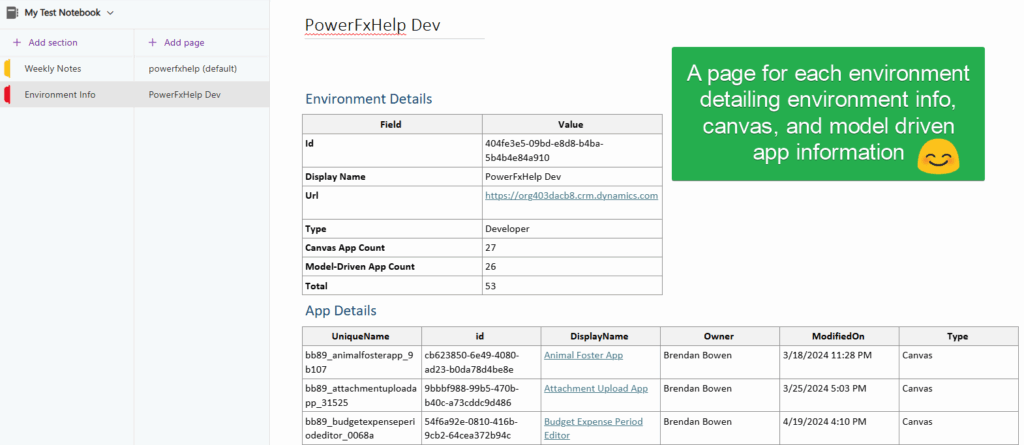
Within Dataverse, there are two tables that house information about your apps. They are “Canvas Apps” (logical name: canvasapp) and “Model-driven Apps” (logical name: appmodule). I wanted to fetch this data about each of my environment’s apps to build the documentation about my apps, such as name, owner, URL, etc. Then, export this data to a OneNote Section with each page in that section representing an environment.
Power Automate Setup Details
Fetch the Model Driven Apps
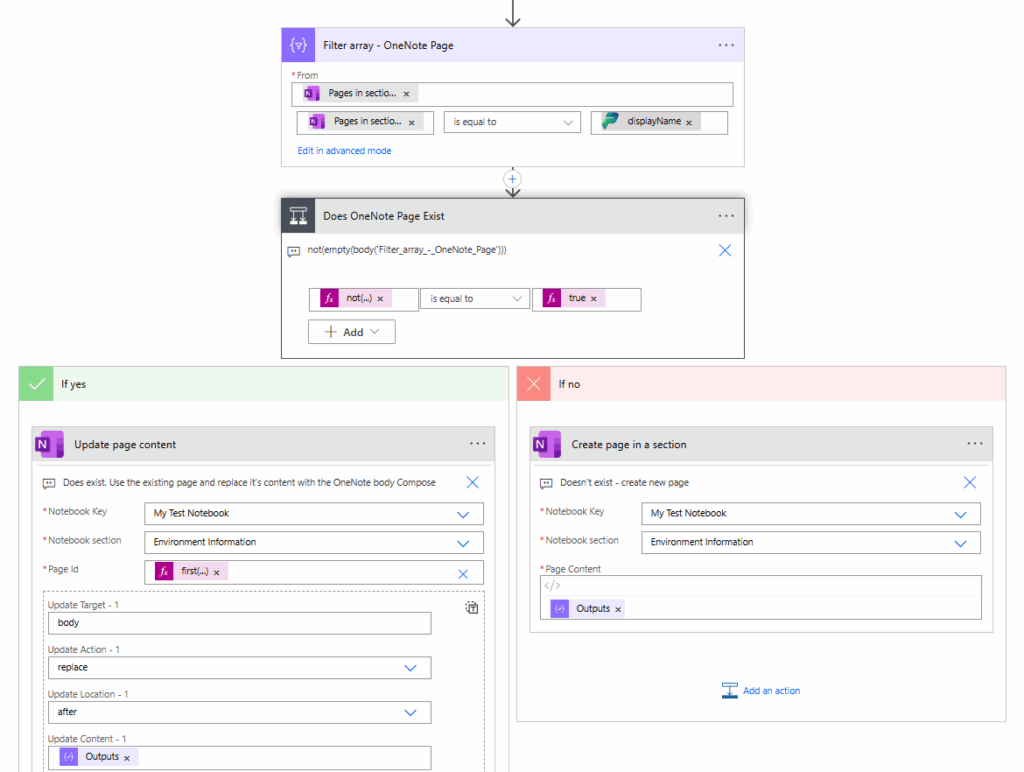
To begin with, I get all pages for a specific section of my OneNote Notebook. This is used later to determine if a page needs to be created or updated. Next, using the Power Automate connector “Power Platform for admin v2”, use the “Retrieves a list of environments” action and loop through each environment.
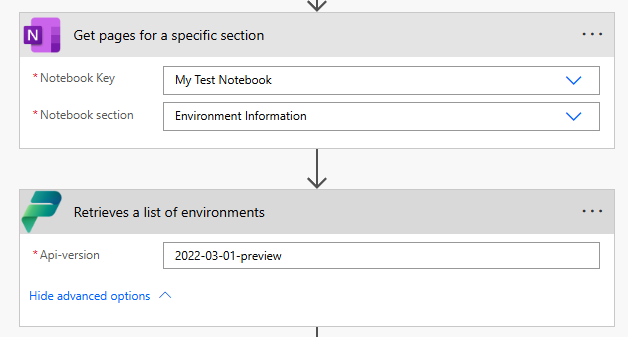
This action will only return data if the user running it has the system administrator security role in each environment, otherwise it will return nothing. Be sure the user account that owns the flow has this right!
Within the apply to each, use the Dataverse “List Rows for a selected environment” action and plug the url dynamic content for the environment in place. Using the select action, I’ll pick the specific fields I’m after.
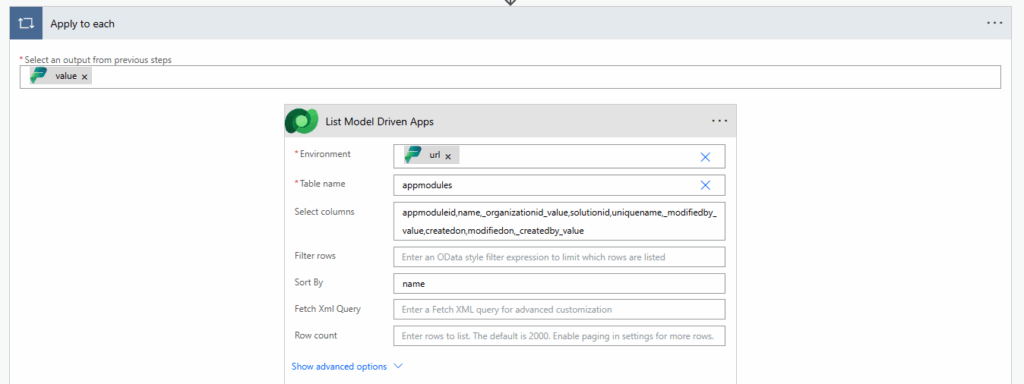
| Table Name | Selected Columns |
|---|---|
| appmodules | appmoduleid,name,_organizationid_value,solutionid,uniquename,_modifiedby_value,createdon,modifiedon,_createdby_value |
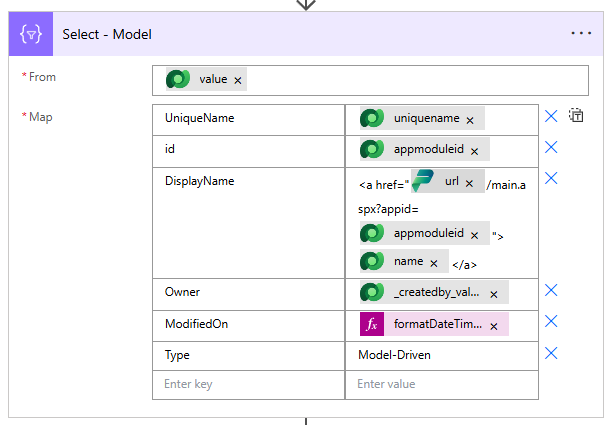
When using a custom value for the environment, it seems there’s a bug that doesn’t return the dynamic content that results from the list rows action. Therefore, in the select action, I had to type in the columns manually using item()?[‘LogicalColumnName’] (ex: item()?[‘name’]) instead.
The Model Driven App table doesn’t actually hold a column for the app URL, however we can dynamically construct it using the following for Model Driven:
<a href="@{items('Apply_to_each')?['url']}/main.aspx?appid=@{item()?['appmoduleid']}">@{item()?['name']}</a>Fetch the Canvas Apps
For the Canvas Apps, I use the PowerApps for Admins Connector and Get Apps as Admin Action. I used consistent column names in my select actions to union them and populate the results array variable. If the canvas app is not in a solution, it won’t actually have a unique name value. Therefore, if it the property is blank, I just put ‘N/A’. Since the Get Apps as Admin step doesn’t support sorting, I use an extra Compose to sort by the App Display Name.

Unlike the Model Driven App table, the Canvas App table does contain the link to the app which can be referenced using the appOpenUri property.
Note there is a Dataverse table called “Canvas Apps” (logical name canvasapps) that holds Canvas App information. However, it only includes solution-aware Canvas Apps, so the PowerApps for Admin connector is better for retrieving all apps.
With my data collected, and the select outputs having the same schema, I can union these together to create one table:

Construct the OneNote Page
With the data collected, I worked on the content for the pages. There’s an “Environment Info” summary table showcasing key environment details, and the number of apps in that environment. I added basic inline styles to the HTML tables since OneNote API has limited CSS support and is finicky.
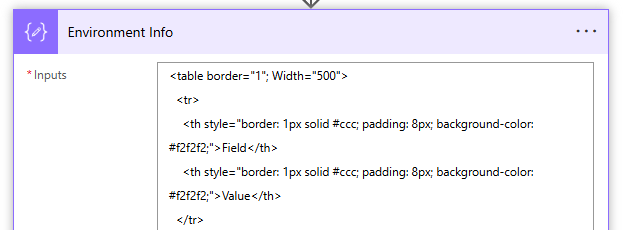
<table border="1"; Width="500">
  <tr>
    <th style="border: 1px solid #ccc; padding: 8px; background-color: #f2f2f2;">Field</th>
    <th style="border: 1px solid #ccc; padding: 8px; background-color: #f2f2f2;">Value</th>
  </tr>
  <tr>
    <td style="border: 1px solid #ccc; padding: 8px;"><strong>Id</strong></td>
    <td style="border: 1px solid #ccc; padding: 8px;">@{items('Apply_to_each')?['id']}</td>
  </tr>
  <tr>
    <td style="border: 1px solid #ccc; padding: 8px;"><strong>Display Name</strong></td>
    <td style="border: 1px solid #ccc; padding: 8px;">@{items('Apply_to_each')?['displayName']}</td>
  </tr>
  <tr>
    <td style="border: 1px solid #ccc; padding: 8px;"><strong>Url</strong></td>
    <td style="border: 1px solid #ccc; padding: 8px;">@{items('Apply_to_each')?['url']}</td>
  </tr>
  <tr>
    <td style="border: 1px solid #ccc; padding: 8px;"><strong>Type</strong></td>
    <td style="border: 1px solid #ccc; padding: 8px;">@{items('Apply_to_each')?['type']}</td>
  </tr>
  <tr>
    <td style="border: 1px solid #ccc; padding: 8px;"><strong>Canvas App Count</strong></td>
    <td style="border: 1px solid #ccc; padding: 8px;">@{length(body('Select_-_Canvas'))}</td>
  </tr>
  <tr>
    <td style="border: 1px solid #ccc; padding: 8px;"><strong>Model-Driven App Count</strong></td>
    <td style="border: 1px solid #ccc; padding: 8px;">@{length(body('Select_-_Model'))}</td>
  </tr>
  <tr>
    <td style="border: 1px solid #ccc; padding: 8px;"><strong>Total</strong></td>
    <td style="border: 1px solid #ccc; padding: 8px;">@{length(outputs('Union'))}</td>
  </tr>
</table>
The App Details section is the result of my union of the canvas and model driven app info – created as an html table and some additional inline styling added:
replace(replace(replace(outputs('HTML_Table_Replace'), '<table>', '<table border="1"; Width="1000">'), '<th>', '<th style="border: 1px solid #ccc; padding: 8px; background-color: #f2f2f2;">'), '<td>', '<td style="border: 1px solid #ccc; padding: 8px;">')The text within the <title></title> tags in my OneNote Body Compose Action is what is used for the page name in OneNote.
Update existing page in Section or New Page in Section
We need to check an see if an existing page already exists in the OneNote section. This is determined by the environment’s Display Name which is the name of the OneNote Page. If the page already exists, replace the page content with the new content, else create new.
Get the solution
If you would just like the completed flow to import into your environment, you can download it from my github.