
Unlike a default environment in your tenant, which includes all valid users in Entra, other Dataverse environments that use security groups to control access do not automatically sync those users. In order for a user to obtain access to an environment, they need the following:
- A valid Power Apps license
- Access to the environment’s security group
- A security role within the environment
If any of those three conditions aren’t met, then nope—no access.
Even then, however, the user still won’t automatically show up!
The reason is because Dataverse uses just-in-time (JIT) user provisioning, meaning qualified users are only added to the environment once they’ve met the aforementioned criteria. This poses a problem when you are trying to provision a user to a specific security role ahead of time such as for User Acceptance testing, or staging.
What’s the solution then? I’ll discuss two ways—using Power Automate and PowerShell—to perform these actions.
Example: Finance Admin Team and Security Role
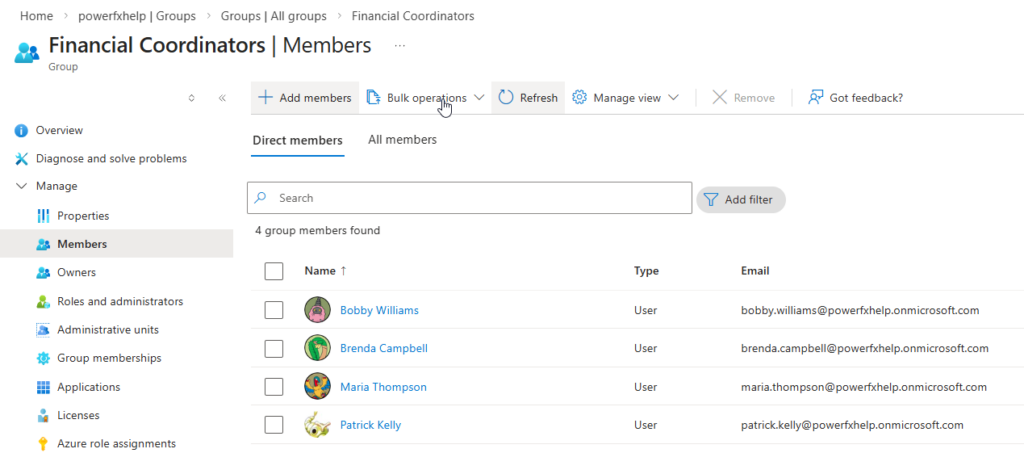
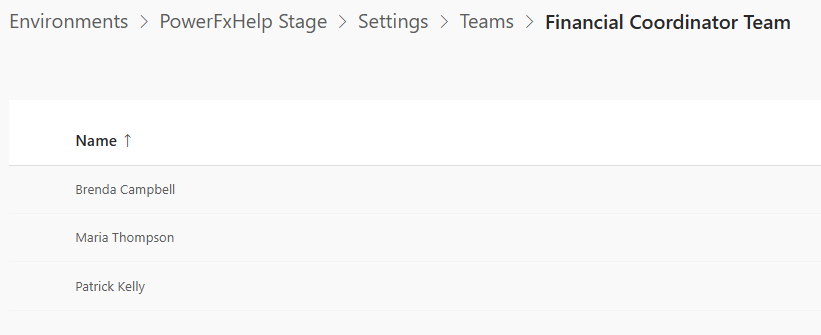
I have a security group called “Financial Coordinators” within Entra, which consists of these group members.
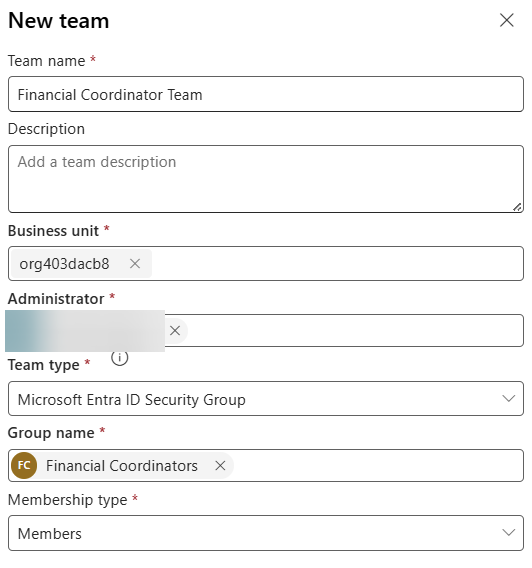
In the Power Platform Admin Center, I have my environment and a team called “Financial Coordinator Team” associated with this security group.
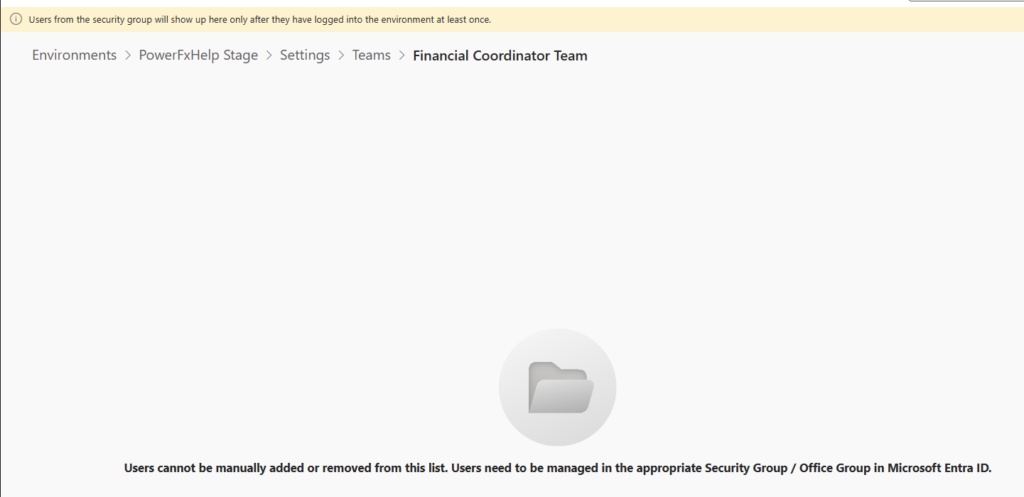
Clicking on the 3 dots and going to “Manage Team Members”, you can clearly see that there are no members, despite the fact that my security group has them! The warning shows that the users won’t appear until they’ve accessed the environment. There’s the disconnect! Now, on to the syncing process.
Using Power Automate to Force Sync
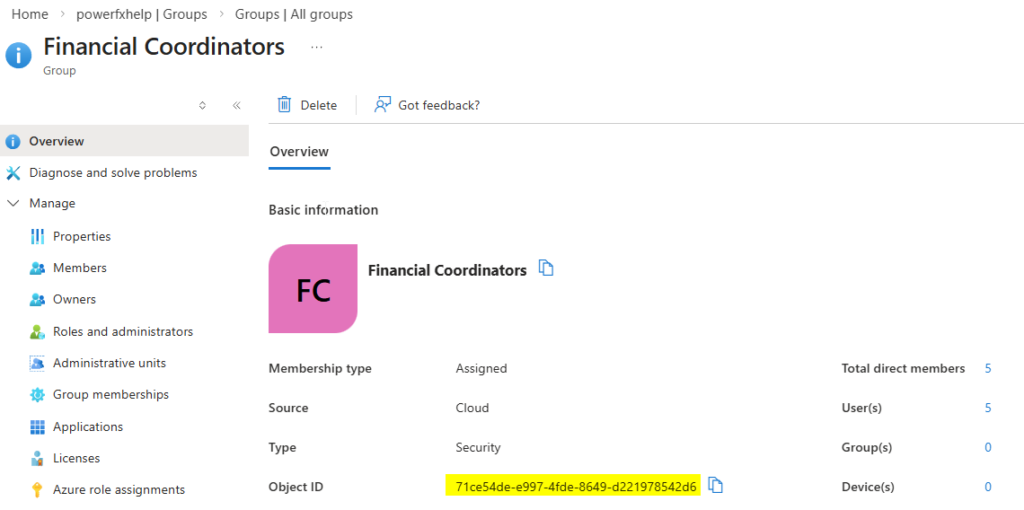
The steps involve passing the object ID of the security group, retrieving the object IDs of the group members, and force syncing them using the handy “Force Sync User” action found under the Power Platform for Admins actions.
Next, use the “List Group Members” Office 365 Groups action to get the members’ object IDs and loop through them to sync.
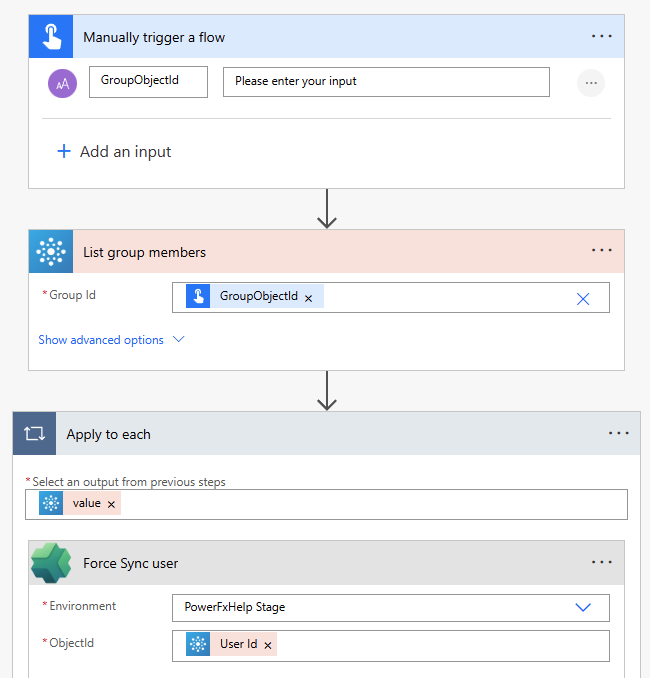
If you’re not using a security group full of members, you can also just sync individual users to the environment by getting their object ID directly from Entra instead.
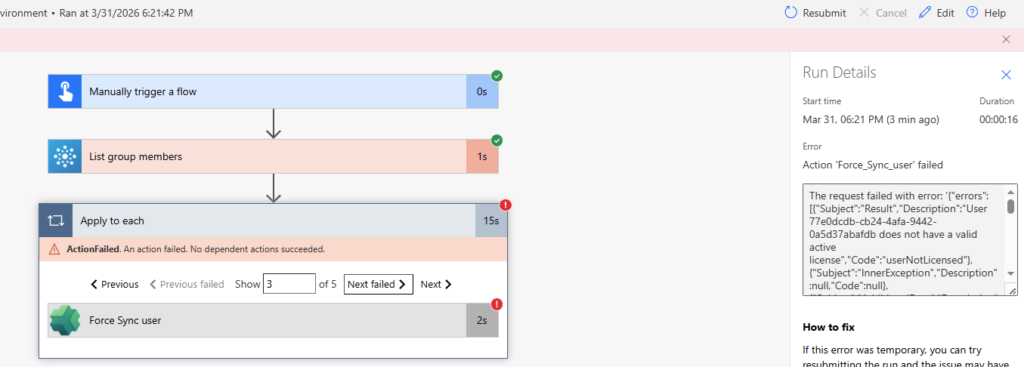
When I ran this flow, 3 of my 5 members synced successfully while the 2 error because they were lacking the PowerApps License. This error is very clearly spelled out:
Using PowerShell to Force Sync Members
Using the MgGraph and PowerAppsAdministration module, we can effectively create a simple script that does the same thing as the Power Automate approach. In the end, you’ll get a status 200 message upon successful add.
<#

.SYNOPSIS

Use the MgGraph and PowerApps Administration Module Cmdlets to fetch members of a security group
and sync members to the Dataverse Environment

#>

$groupid = "" # The Object Guid of the Group in Azure/Entra
$environmentName = "" # Environment Guid for the target environment

Connect-MgGraph -Scopes GroupMember.Read.All, User.Read.All, Group.Read.All, Directory.Read.All

Add-PowerAppsAccount

# Retrieve members of a specified group
$groupMembers = Get-MgGroupMember -GroupId $groupid

$groupMemberDetails = foreach ($groupMember in $groupMembers) {

    $MemberUserObj = Get-MgUser -UserId $groupMember.Id

    [PSCustomObject]@{
        Id                = $MemberUserObj.Id
        DisplayName       = $MemberUserObj.DisplayName
        UserPrincipalName = $MemberUserObj.Mail
    }
}

# Sync users and capture results
$SyncResults = foreach ($member in $groupMemberDetails) {

    Write-Host "Adding $($member.DisplayName) to environment $environmentName"

    $result = Add-AdminPowerAppsSyncUser `
        -EnvironmentName $environmentName `
        -PrincipalObjectId $member.Id

    [PSCustomObject]@{
        DisplayName = $member.DisplayName
        Id          = $member.Id
        Code        = $result.Code
        Description = $result.Description
        Error       = $result.Error
        Success     = [bool]!$result.Error
    }
}

# Optional: view results
$SyncResults | Format-Table -AutoSize
Conclusion
Whichever approach you take, this is a process you’ll likely encounter again and again. In my User Acceptance Testing example, success depends on a few key prerequisites. You must add users to the environment’s security group. Confirm they have a valid Power Apps license. Place them into the appropriate security groups tied to your security roles. Once those steps are complete, running the force sync process becomes straightforward. From there, it’s smooth sailing. 😁