
Nested galleries (sometimes called accordion galleries) are a great way to group related data into a hierarchical view. In this post I’ll explain the logic behind a nested gallery and give you YAML you can paste straight into PowerApps Studio to get your own nested gallery structure in seconds.
What We’re Building
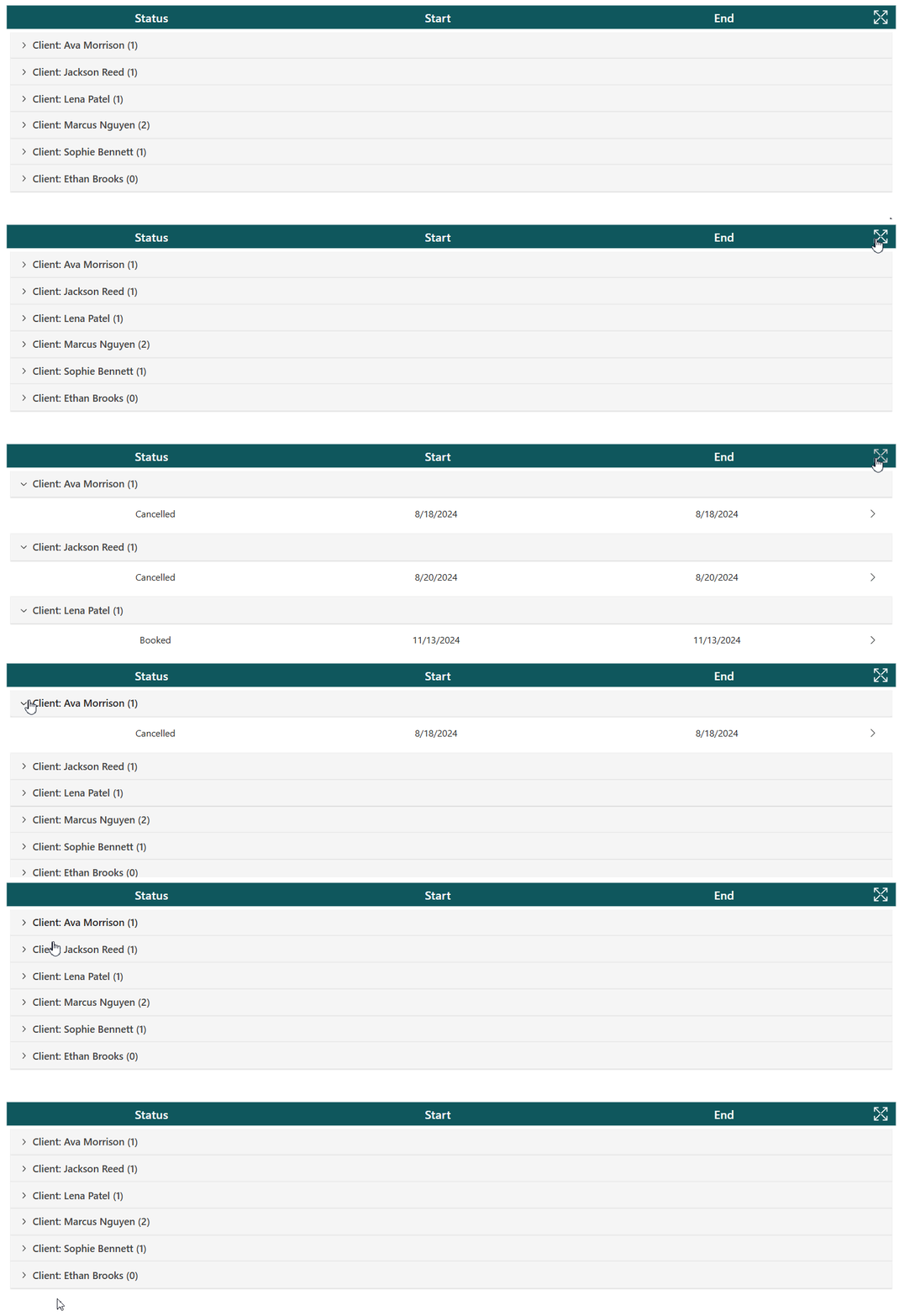
My example data is a list of clients who each have many bookings. In SharePoint you would have two lists: one for Clients and one for Bookings, with a lookup column on Bookings that points back to its client.
The parent gallery shows one row per client. Selecting a row expands it to show that client’s bookings underneath: Status, Start and End. Selecting it again collapses it, and an icon in the header expands or collapses every row at once.
To keep this easy to follow, I’ll use two collections as the sample data. At the end I’ll show how to swap them for your own lists.
Sample Data
First, create the sample data. In your app, set the OnStart property of the App. It creates a colClients collection with six clients and a colBookings collection with their bookings:
ClearCollect(
    colClients,
    {Client: "Ava Morrison"},
    {Client: "Jackson Reed"},
    {Client: "Lena Patel"},
    {Client: "Marcus Nguyen"},
    {Client: "Sophie Bennett"},
    {Client: "Ethan Brooks"}
);
ClearCollect(
    colBookings,
    {Client: Index(colClients, 1).Client, Status: "Cancelled", StartDate: "8/18/2024", EndDate: "8/25/2024"},
    {Client: Index(colClients, 2).Client, Status: "Cancelled", StartDate: "8/20/2024", EndDate: "8/21/2024"},
    {Client: Index(colClients, 3).Client, Status: "Booked", StartDate: "11/13/2024", EndDate: "11/13/2024"},
    {Client: Index(colClients, 4).Client, Status: "Booked", StartDate: "8/18/2024", EndDate: "8/18/2024"},
    {Client: Index(colClients, 4).Client, Status: "Booked", StartDate: "11/13/2024", EndDate: "11/13/2024"},
    {Client: Index(colClients, 5).Client, Status: "Booked", StartDate: "11/14/2024", EndDate: "11/14/2024"}
)
The dates are plain text here to keep the example simple. In a real app they would be date columns. The bookings pull each client name from colClients with Index(colClients, 1).Client, Index(colClients, 2).Client and so on, so every name is typed only once. Index looks the record up by its position in the collection, which is fine for sample data like this. Both collections end up with a Client column, and that’s the link between the parent and child galleries. (Ethan Brooks has no bookings, so his row will open to an empty list.)
Gallery Setup
1. Add the header
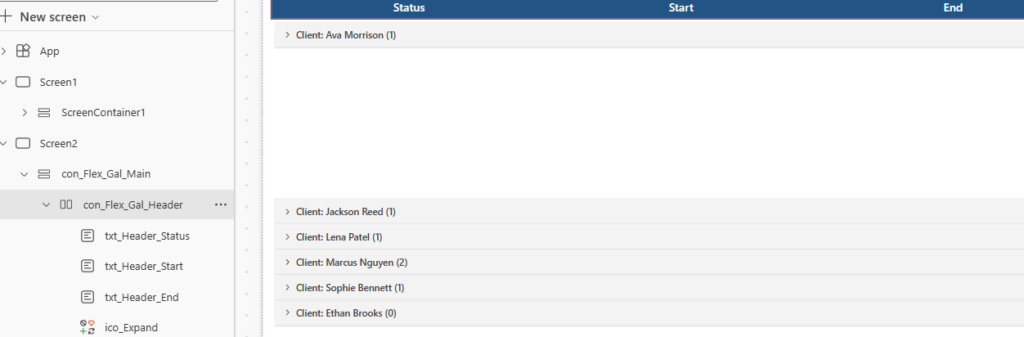
In a vertical container, add a horizontal container for the headers. Add three labels (Status, Start and End) and an icon for expanding and collapsing all rows.
2. Add the parent gallery
Below the header, add a blank flexible height gallery. This is the Clients gallery. Set its Items property to colClients and set its TemplatePadding to 0.
3. Add the parent row
In the Clients gallery, add a horizontal container and set its Width to Parent.TemplateWidth and its Height to 40. Inside it, add a modern button and set:
- Width to
Parent.Widthand Height toParent.Height - Appearance to Subtle and Align to Left, so it looks like a row instead of a button
4. Add the child gallery
Inside the same Clients gallery, add a second blank flexible height gallery. This one shows the bookings. Set its Width to Parent.TemplateWidth and its Y to the height of the parent row (40 in this case), so it sits directly under it.
5. Filter the child gallery
The child gallery’s Items property should return only the bookings for the current client:
Filter(colBookings, Client = ThisItem.Client)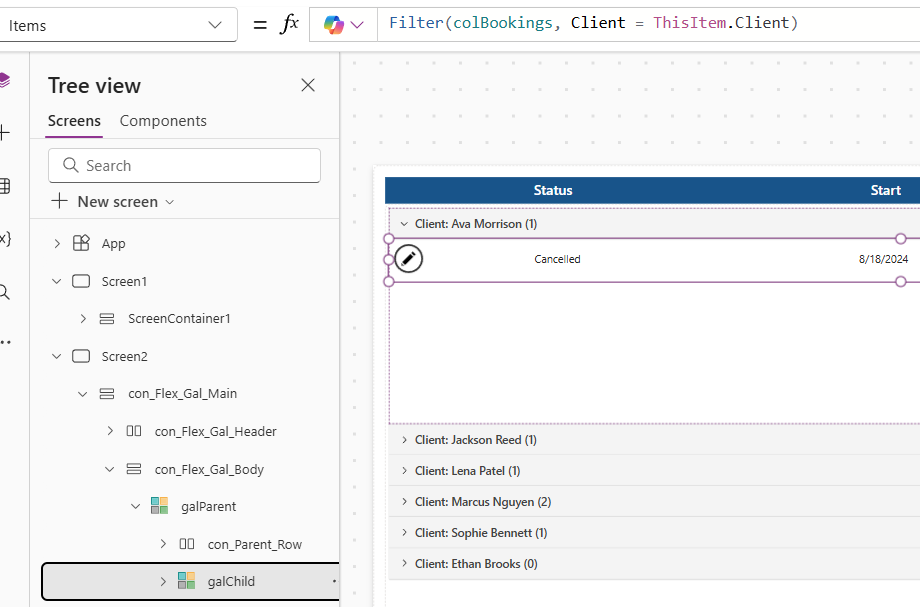
6. Add the child row
In the child gallery, add a horizontal container with a Width of Parent.TemplateWidth and a Height of 40. Add three labels for ThisItem.Status, ThisItem.StartDate and ThisItem.EndDate, lined up with the header labels from step 1.
7. Show the booking count
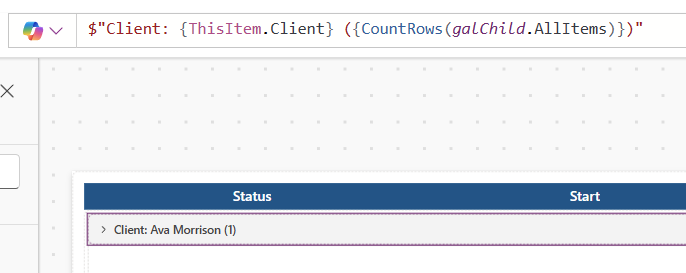
Back on the parent button, set the Text property to:
$"Client: {ThisItem.Client} ({CountRows(galChild.AllItems)})"This shows the client name and the number of bookings under that client.
8. Size the child gallery to fit
A flexible height gallery inside a gallery doesn’t grow on its own, so set the child gallery’s Height from its item count:
CountRows(Self.AllItems) * Self.TemplateHeight + (Self.TemplatePadding * 3)Toggling Gallery Items
The expand and collapse behavior comes from two context variables:
ctxRowSelectholds the client whose row is currently open.ctxExpandGalis true when the expand-all icon has been used.
Opening one row. The parent button’s OnSelect sets ctxRowSelect to the selected client, or clears it if that client was already open, and turns expand-all off:
UpdateContext(
    {
        ctxRowSelect: If(
            ctxRowSelect = ThisItem.Client,
            Blank(),
            ThisItem.Client
        ),
        ctxExpandGal: false
    }
)
Selecting a different client replaces ctxRowSelect, so the previous row collapses automatically.
Showing the child gallery. The child gallery’s Visible property shows it for the open row, or for every row when expand-all is on:
ctxRowSelect = ThisItem.Client || ctxExpandGalThe chevron. The parent button’s Icon property uses the same test, so the chevron points down when the row is open:
If(ctxRowSelect = ThisItem.Client || ctxExpandGal, "ChevronDown", "ChevronRight")Expand or collapse everything. The icon in the header flips ctxExpandGal and clears the single-row selection:
UpdateContext(
    {
        ctxExpandGal: !ctxExpandGal,
        ctxRowSelect: Blank()
    }
)
Working with Your Own Data
To connect your own data, replace the two collections:
- Replace
colClientsin the parent gallery’s Items with your Clients list. - Replace
colBookingsin the child gallery’s Items with your Bookings list. With a SharePoint lookup column, the filter would look likeFilter(Bookings, Client.Value = ThisItem.Title). - Update the labels, and the
ThisItem.Clientreferences, to match your column names.
A few delegation notes:
- Keep the parent gallery on a plain list (your Clients list) and avoid building it with
GroupByover the Bookings list.GroupByisn’t delegable, so it only processes the first 500 rows (up to 2,000 if you raise the data row limit). - Each parent row runs its own query for its child gallery, so a very large number of clients means a lot of queries. This pattern works best for dozens of parents, not thousands.
- Make sure the filter on the child gallery is delegable for your data source.
Get the Code
To use it, first create the sample collections from the Sample Data section above. Then add a blank screen to a canvas app, select it, and paste this YAML with Ctrl+V.
- con_Flex_Gal_Main:
Control: GroupContainer@1.3.0
Variant: AutoLayout
Properties:
DropShadow: =DropShadow.None
Height: =Parent.Height
LayoutDirection: =LayoutDirection.Vertical
PaddingBottom: =15
PaddingLeft: =15
PaddingRight: =15
PaddingTop: =15
RadiusBottomLeft: =0
RadiusBottomRight: =0
RadiusTopLeft: =0
RadiusTopRight: =0
Width: =Parent.Width
Children:
- con_Flex_Gal_Header:
Control: GroupContainer@1.3.0
Variant: AutoLayout
Properties:
DropShadow: =DropShadow.None
Fill: =App.Theme.Colors.Darker20
FillPortions: =0
Height: =35
LayoutAlignItems: =LayoutAlignItems.Center
LayoutDirection: =LayoutDirection.Horizontal
LayoutGap: =5
PaddingBottom: =Self.LayoutGap
PaddingLeft: =Self.LayoutGap
PaddingRight: =Self.LayoutGap
PaddingTop: =Self.LayoutGap
RadiusBottomLeft: =0
RadiusBottomRight: =0
RadiusTopLeft: =0
RadiusTopRight: =0
Children:
- txt_Header_Status:
Control: Text@0.0.51
Properties:
Align: ='TextCanvas.Align'.Center
FillPortions: =1
FontColor: =RGBA(255, 255, 255, 1)
PaddingBottom: =0
PaddingLeft: =5
PaddingRight: =5
PaddingTop: =0
Size: =18
Text: ="Status"
VerticalAlign: =VerticalAlign.Middle
Weight: ='TextCanvas.Weight'.Semibold
- txt_Header_Start:
Control: Text@0.0.51
Properties:
Align: ='TextCanvas.Align'.Center
FillPortions: =1
FontColor: =RGBA(255, 255, 255, 1)
PaddingBottom: =0
PaddingLeft: =5
PaddingRight: =5
PaddingTop: =0
Size: =18
Text: ="Start"
VerticalAlign: =VerticalAlign.Middle
Weight: ='TextCanvas.Weight'.Semibold
- txt_Header_End:
Control: Text@0.0.51
Properties:
Align: ='TextCanvas.Align'.Center
FillPortions: =1
FontColor: =RGBA(255, 255, 255, 1)
PaddingBottom: =0
PaddingLeft: =5
PaddingRight: =5
PaddingTop: =0
Size: =18
Text: ="End"
VerticalAlign: =VerticalAlign.Middle
Weight: ='TextCanvas.Weight'.Semibold
- ico_Expand:
Control: Classic/Icon@2.5.0
Properties:
Color: =Color.White
Height: =Parent.Height
Icon: =Icon.ExpandView
OnSelect: |-
=UpdateContext(
{
ctxExpandGal: !ctxExpandGal,
ctxRowSelect: Blank()
}
)
PaddingBottom: =5
PaddingLeft: =5
PaddingRight: =5
PaddingTop: =5
Width: =Self.Height
X: =730
Y: =40
- con_Flex_Gal_Body:
Control: GroupContainer@1.3.0
Variant: AutoLayout
Properties:
DropShadow: =DropShadow.None
LayoutDirection: =LayoutDirection.Vertical
PaddingBottom: =5
PaddingLeft: =5
PaddingRight: =5
PaddingTop: =5
RadiusBottomLeft: =0
RadiusBottomRight: =0
RadiusTopLeft: =0
RadiusTopRight: =0
Children:
- galParent:
Control: Gallery@2.15.0
Variant: VariableHeight
Properties:
BorderColor: =App.Theme.Colors.Primary
Items: =colClients
TemplatePadding: =0
X: =726
Y: =136
Children:
- galChild:
Control: Gallery@2.15.0
Variant: VariableHeight
Properties:
BorderColor: =App.Theme.Colors.Primary
DelayItemLoading: =false
Height: =CountRows(Self.AllItems) * Self.TemplateHeight + (Self.TemplatePadding *3)
Items: =Filter(colBookings, Client = ThisItem.Client)
LoadingSpinner: =LoadingSpinner.None
TemplateSize: =40
Visible: =ctxRowSelect = ThisItem.Client || ctxExpandGal
Width: =Parent.TemplateWidth
Y: =btn_Parent_Client.Height
Children:
- con_Child_Row:
Control: GroupContainer@1.3.0
Variant: AutoLayout
Properties:
DropShadow: =DropShadow.None
Fill: =Color.White
Height: =40
LayoutAlignItems: =LayoutAlignItems.Center
LayoutDirection: =LayoutDirection.Horizontal
LayoutGap: =5
PaddingBottom: =5
PaddingLeft: =5
PaddingRight: =5
PaddingTop: =5
RadiusBottomLeft: =0
RadiusBottomRight: =0
RadiusTopLeft: =0
RadiusTopRight: =0
Width: =Parent.TemplateWidth
Children:
- txt_Child_Status:
Control: Text@0.0.51
Properties:
Align: ='TextCanvas.Align'.Center
FillPortions: =1
PaddingBottom: =0
PaddingLeft: =5
PaddingRight: =5
PaddingTop: =0
Text: =ThisItem.Status
VerticalAlign: =VerticalAlign.Middle
- txt_Child_Start:
Control: Text@0.0.51
Properties:
Align: ='TextCanvas.Align'.Center
FillPortions: =1
PaddingBottom: =0
PaddingLeft: =5
PaddingRight: =5
PaddingTop: =0
Text: =ThisItem.StartDate
VerticalAlign: =VerticalAlign.Middle
- txt_Child_End:
Control: Text@0.0.51
Properties:
Align: ='TextCanvas.Align'.Center
FillPortions: =1
PaddingBottom: =0
PaddingLeft: =5
PaddingRight: =5
PaddingTop: =0
Text: =ThisItem.EndDate
VerticalAlign: =VerticalAlign.Middle
- btn_Row_Edit:
Control: Button@0.0.45
Properties:
Appearance: ='ButtonCanvas.Appearance'.Transparent
Height: =Parent.Height
Icon: ="ChevronRight"
Layout: ='ButtonCanvas.Layout'.IconOnly
OnSelect: =Notify($"{ThisItem.Client} record selected",NotificationType.Information,2000)
Text: ="Edit"
Width: =Self.Height
- con_Parent_Row:
Control: GroupContainer@1.3.0
Variant: AutoLayout
Properties:
BorderColor: =RGBA(244,244,244,1)
Fill: =RGBA(244,244,244,1)
Height: =40
LayoutDirection: =LayoutDirection.Horizontal
RadiusBottomLeft: =0
RadiusBottomRight: =0
RadiusTopLeft: =0
RadiusTopRight: =0
Width: =Parent.TemplateWidth
Children:
- btn_Parent_Client:
Control: Button@0.0.45
Properties:
Align: =Align.Left
Appearance: ='ButtonCanvas.Appearance'.Subtle
BorderRadiusBottomLeft: '=0 '
BorderRadiusBottomRight: =0
BorderRadiusTopLeft: =0
BorderRadiusTopRight: =0
FontSize: =15
Height: =Parent.Height
Icon: =If(ctxRowSelect = ThisItem.Client || ctxExpandGal,"ChevronDown","ChevronRight")
IconStyle: ='ButtonCanvas.IconStyle'.Filled
Layout: ='ButtonCanvas.Layout'.IconBefore
OnSelect: |-
=
UpdateContext(
{
ctxRowSelect: If(
ctxRowSelect = ThisItem.Client,
Blank(),
ThisItem.Client
),
ctxExpandGal: false
}
)
Text: |-
=$"Client: {ThisItem.Client} ({CountRows(galChild.AllItems)})"
Width: =Parent.Width
Wrap Up
A nested gallery gives you a clean parent and child view without extra screens: one gallery nested in another, a filter that links them, and two context variables that control what’s open. Swap in your own lists, adjust the columns, and you have a reusable accordion you can drop into any app.