
As a busy user, I appreciate being able to see a visual indicator of the stage/status of an item at a glance. Model-Driven Applications, have Business Process Flows which include a nice visual control, which displays a process bar of the current stage.

This led me to wonder: could I create something similar on the Canvas App side? In this post, I’ll demo my custom reusable component that visually represents stages in a Canvas App.

Example: Ordering Process
Consider an example where you are placing an order for an item. The order follows a very standardized path from the payment, processing, shipping, and delivery. These various statuses correspond to stages within the component that provide the visual feedback.
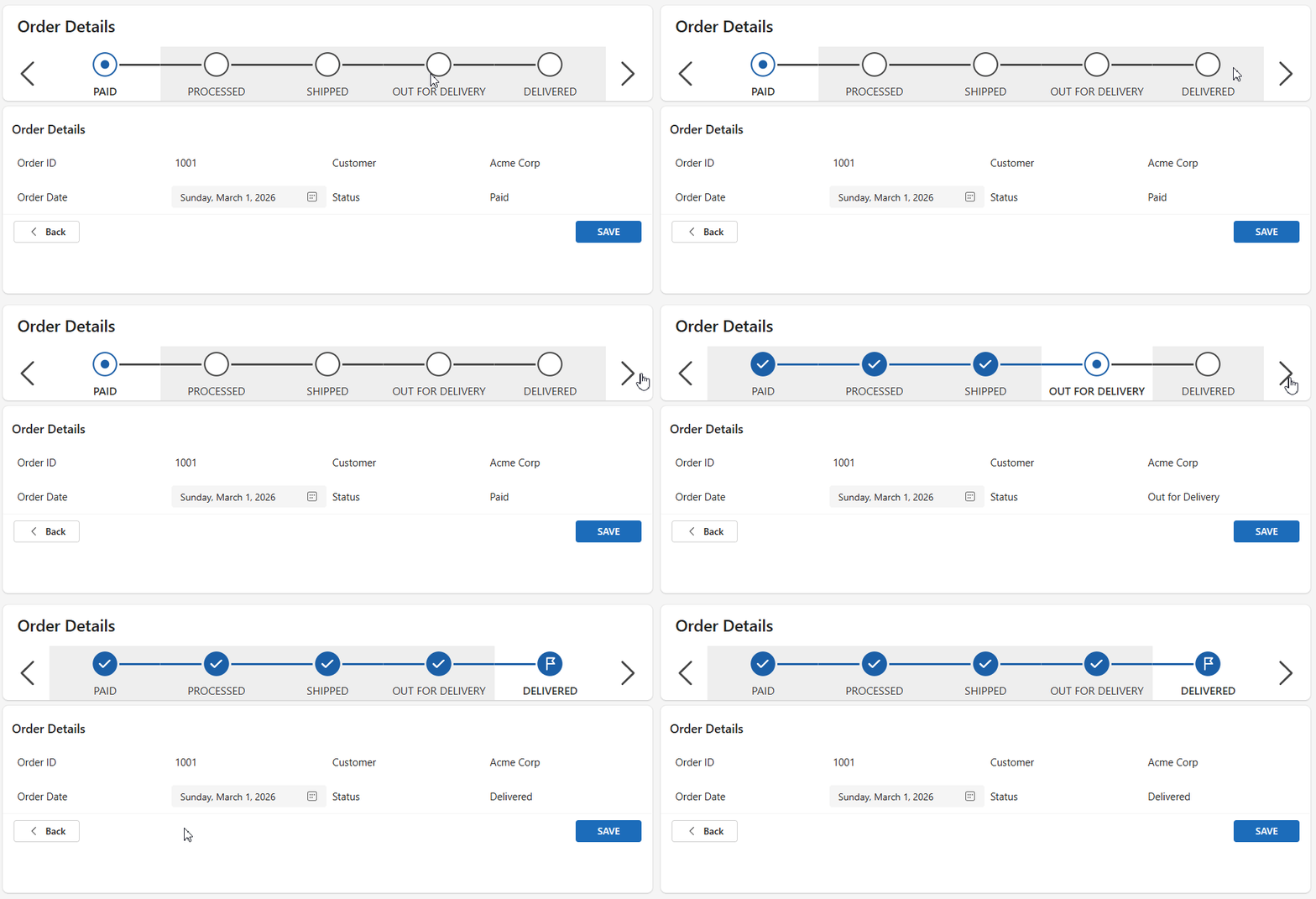
Component Details
On the initial load of the Canvas App, I create a simple collection called colStages that contains the Stage ID and stage title. Next, I initialize a global variable called varCurrentStage to 1. In the component’s custom properties, I bind Table Data and Active Stage Number to colStages and varCurrentStage.
Within the Component itself, there’s two event driven properties for “OnNextStage” and “OnPriorStage” these need to be used to manipulate the next and prior stage. The on next action sets the varCurrentStage variable using Set(varCurrentStage, Min(varCurrentStage + 1, CountRows(Self.TableData))). because we don’t want the stage to exceed the total number of stages in the collection. The on prior applies similar logic, setting varCurrentStage to Max(varCurrentStage - 1, 1) to move back one stage without going below 1.
For my order data, I have a simple collection which also contains the status of the order.
ClearCollect(
    colStages,
    Table(
        {
            Stage: 1,
            Title: "Paid"
        },
        {
            Stage: 2,
            Title: "Processed"
        },
        {
            Stage: 3,
            Title: "Shipped"
        },
        {
            Stage: 4,
            Title: "Out for Delivery"
        },
        {
            Stage: 5,
            Title: "Delivered"
        }
    )
);
Set(
    varCurrentStage,
    1
);
ClearCollect(
    colOrders,
    [
        {
            OrderID: 1001,
            Customer: "Acme Corp",
            OrderDate: Date(
                2026,
                3,
                1
            ),
            Status: "Paid"
        },
        {
            OrderID: 1002,
            Customer: "Northwind Traders",
            OrderDate: Date(
                2026,
                3,
                2
            ),
            Status: "Processed"
        },
        {
            OrderID: 1003,
            Customer: "Contoso Ltd",
            OrderDate: Date(
                2026,
                3,
                2
            ),
            Status: "Shipped"
        },
        {
            OrderID: 1004,
            Customer: "Adventure Works",
            OrderDate: Date(
                2026,
                3,
                3
            ),
            Status: "Out for Delivery"
        }
    ]
);
Here’s a simple gallery to display the orders:
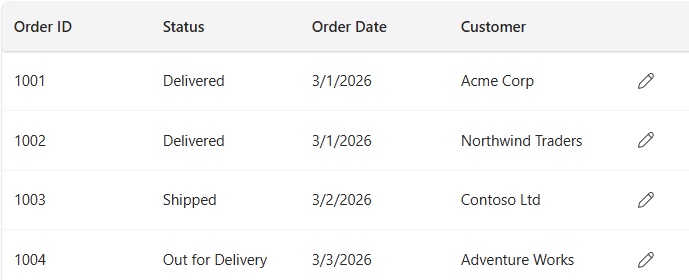
When the pencil icon is clicked, the app sets the current stage based on the selected order’s status and stores the order record in a variable.
Set(
   varCurrentStage,
    LookUp(
        colStages,
        Title = ThisItem.Status
    ).Stage
);
Set(varOrder,ThisItem);
Navigate('Order Details')
Selecting Order ID 1003 will look like this:
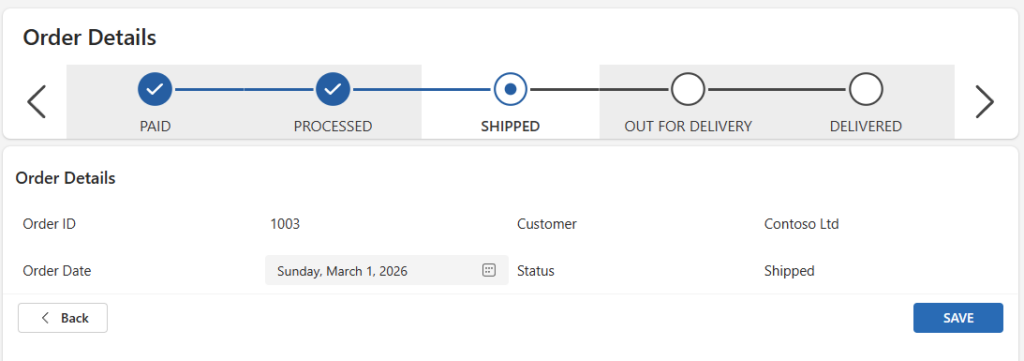
The status label displays cmp_HorizontalProgressBar.StageOutput.Title as users navigate between stages.
Finally, when it’s time to save, the patch is using the control’s output for the status:
With(
    {SelectedStage: cmp_HorizontalProgressBar.StageOutput},
    Patch(
        colOrders,
        {OrderID: varOrder.OrderID},
        {
            Status: SelectedStage.Title,
            OrderDate: DatePicker1.SelectedDate
        }
    )
);
Notify(
    $"Order {varOrder.OrderID} saved",
    NotificationType.Success,
    2000
);
Back()
Get the component
If you’d like to use this component for yourself, visit my GitHub for the code. Be sure to review the ReadMe file for more detailed setup instructions!